Version 1.0
Date | Version | Author | Description |
Dec 23, 2025 | V1.0 | TuanTK1 | First version |
|
|
|
|
|
|
|
|
Contents
2. Pack and Install Extension. 2
3. Force Enable by Policies. 5
Prerequisites
- Windows 10 or Windows Server 2022 (or older version).
- Google Chrome version <= 138 must be installed.
- akaBot Platform must be installed.
- User account with administrator privilege.
Note 1: Windows 11 is not applicable for this guideline.
Note 2: Google Chrome version 139 and newer does not allow to run extension manifest V2.
Pack and Install Extension
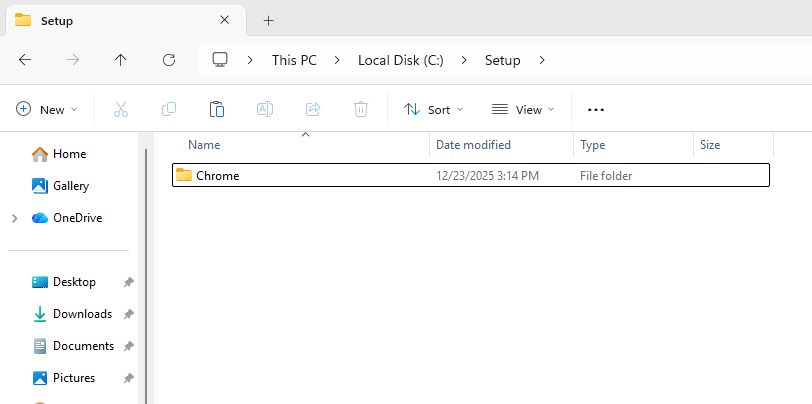
Step 1: Copy the akaBot Chrome extension (MV2) to a new folder that does not require administrative rights to modify.
Source: “C:\Program Files\FPT Software\akaBot Platform\akaBot\BrowserExtensions\Chrome\”
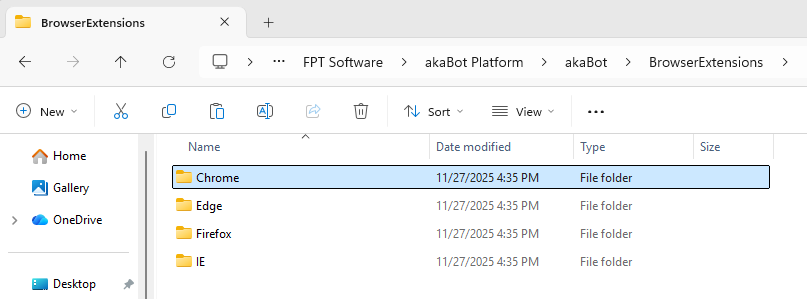
Target: “C:\Setup\Chrome\”
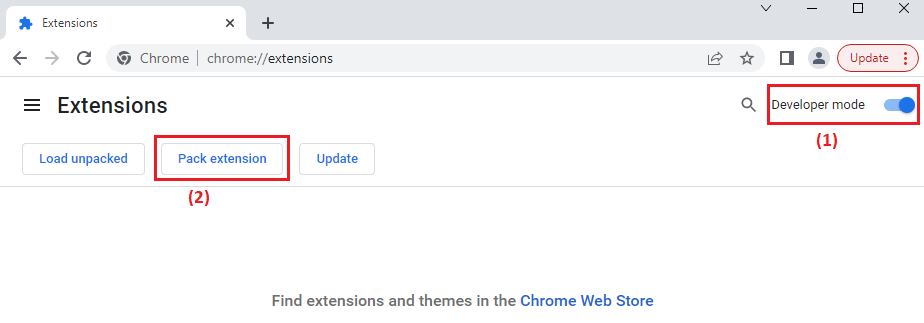
Step 2: Open Google Chrome > Enable Developer mode > Click Pack extension
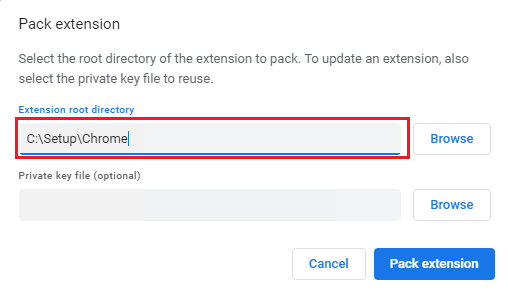
Step 3: In Extension root directory field, browse to folder: C:\Setup\Chrome
Then, click Pack extension.
If the operation was successful, there will be a popup dialog show the result.
Click OK to close.
The extension crx file will be created here.
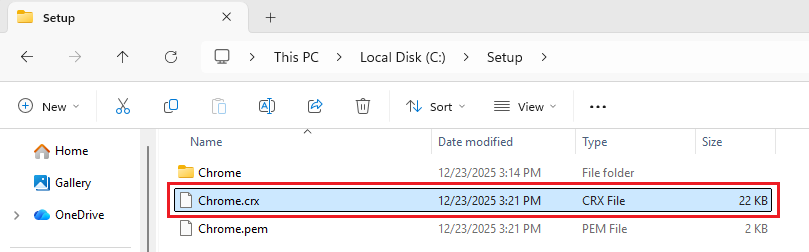
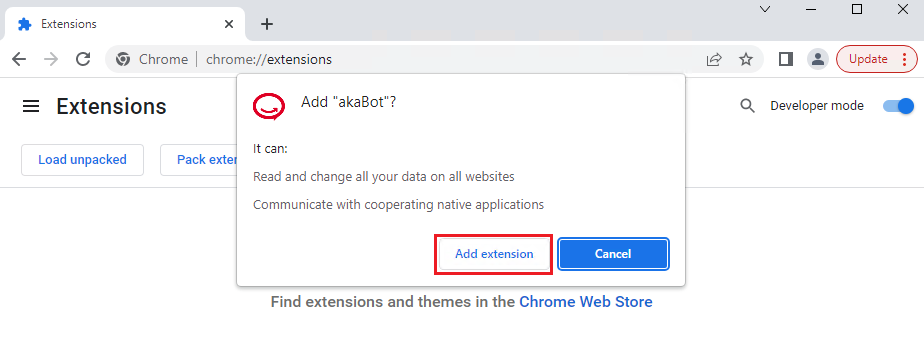
Step 4: Drag and drop Chrome.crx file into Google Chrome > Extensions tab to install.
Click Add extension.
Step 5: Copy the extension id.
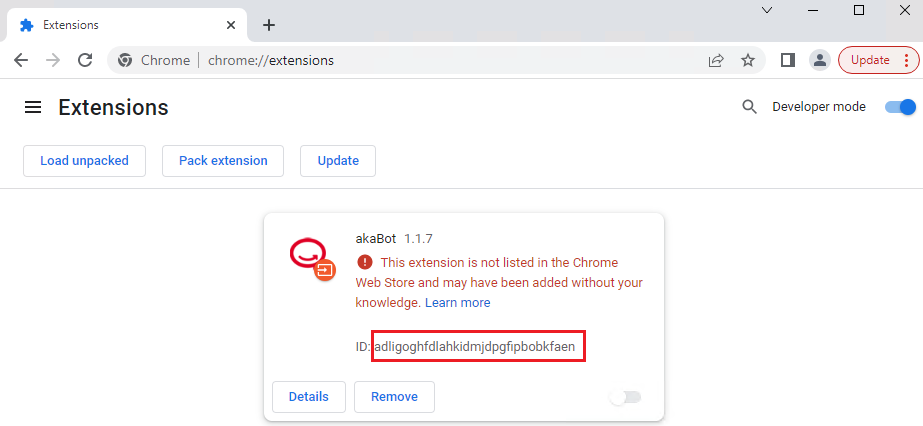
The extension will be installed but disabled by default. Users cannot enable it manually. In the next section, we will enable the extension by forcing it through the Registry Editor.
Step 6: Add extension id to native host
Open Notepad with administrator rights. Then, browse to below json configuration file.
C:\Program Files\FPT Software\akaBot Platform\akaBot\NativeHost\com.akarpa.chromenativemsg.json |
Step 7: Add new extension id to the end of this file. It should looks like this.
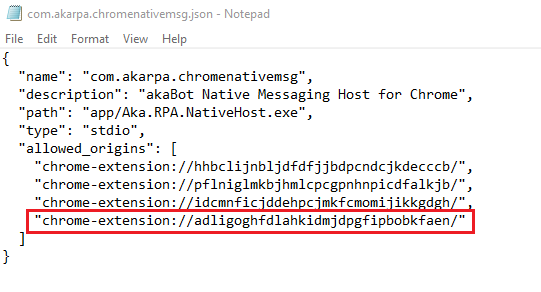
Save and close the configuration file.
Force Enable by Policies
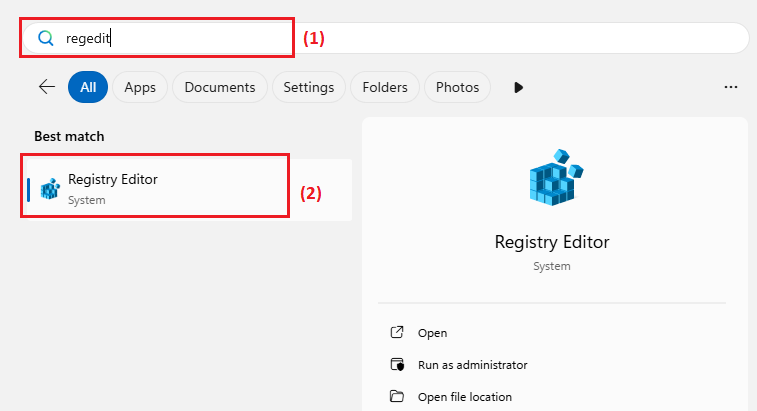
Step 1: In the start menu, type regedit. Then, open the application.
Step 2: Create the following registry keys (if not exists).
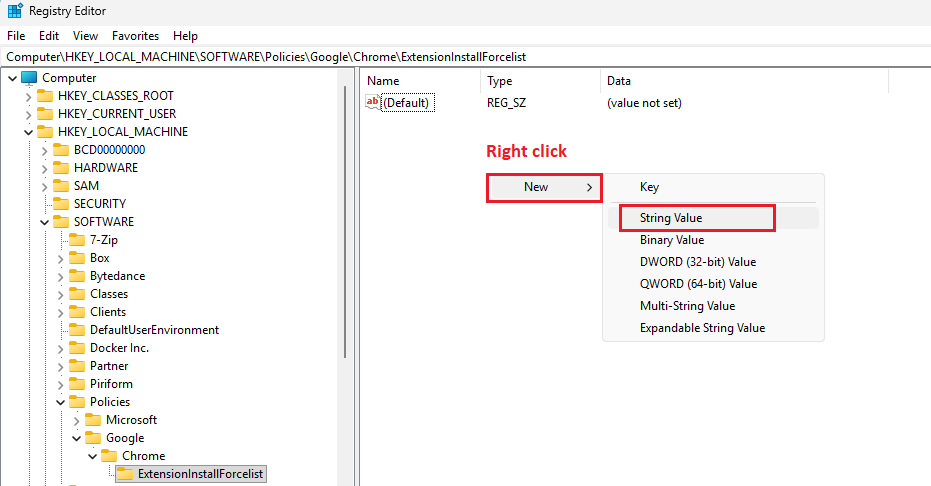
HKLM\Software\Policies\Google\Chrome\ExtensionInstallForcelist |
Step 3: Right click in empty space of the right panel to create a new String value.
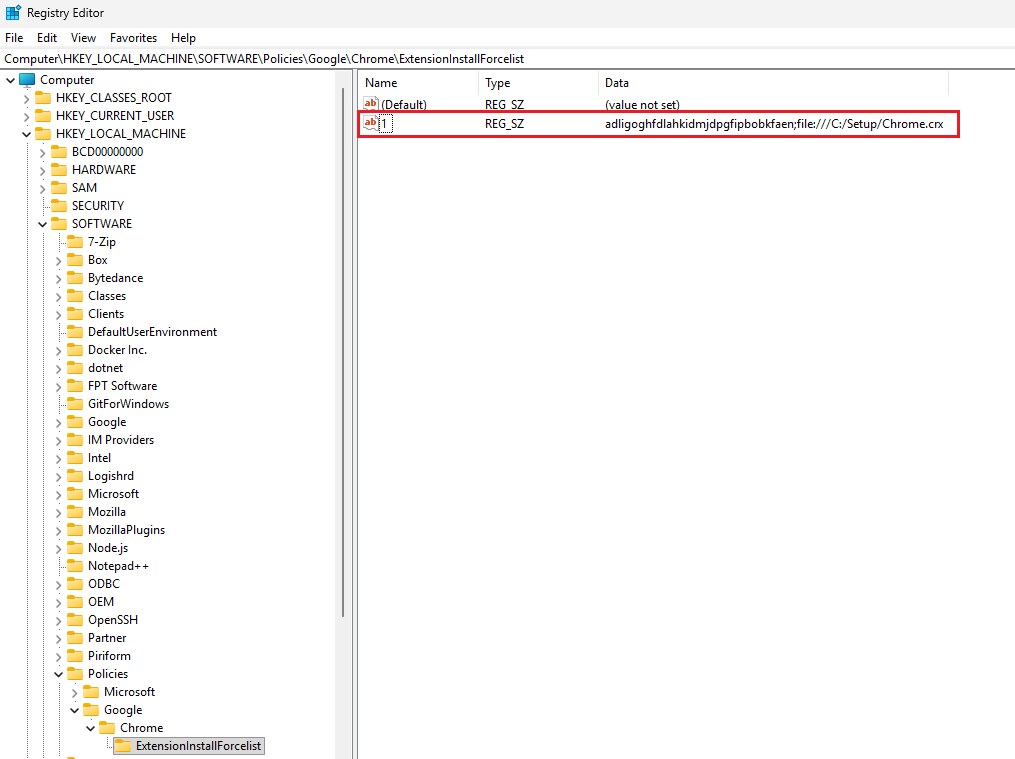
Step 4: Enter registry value
Name: 1
Value: <extension-id>;<path-to-crx-file>
1=adligoghfdlahkidmjdpgfipbobkfaen;file:///C:/Setup/Chrome.crx |
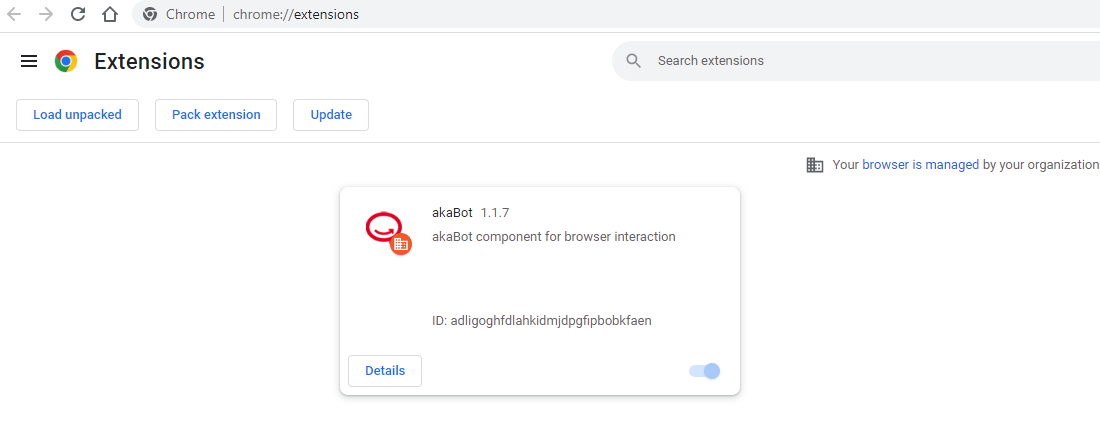
Step 5: Re-open Google Chrome.
You should see that the extension is enabled, as shown in the screenshot below.
Was this article helpful?
That’s Great!
Thank you for your feedback
Sorry! We couldn't be helpful
Thank you for your feedback
Feedback sent
We appreciate your effort and will try to fix the article