Contents
3. Trigger Agent Pool by using Schedule
4. Trigger Agent Pool by using 3rd-party client
1. Prerequisites
Before using the Agent Pool feature, ensure that the following requirements are met:
- akaBot Center is installed and accessible.
- Postman or another HTTP client is available.
- If you intend to trigger an Agent Pool via HTTP requests, you must create a managed token by following the instructions in the Managed Token Guideline document.
2. Create Agent Pool
An Agent Pool is a group of akaBot Agents that are configured to execute a specific workflow. All Agents within the same pool should have identical environments to ensure consistent and stable execution.
To create a new Agent Pool in akaBot Center, navigate to: Agent > Agent Pool > Create New
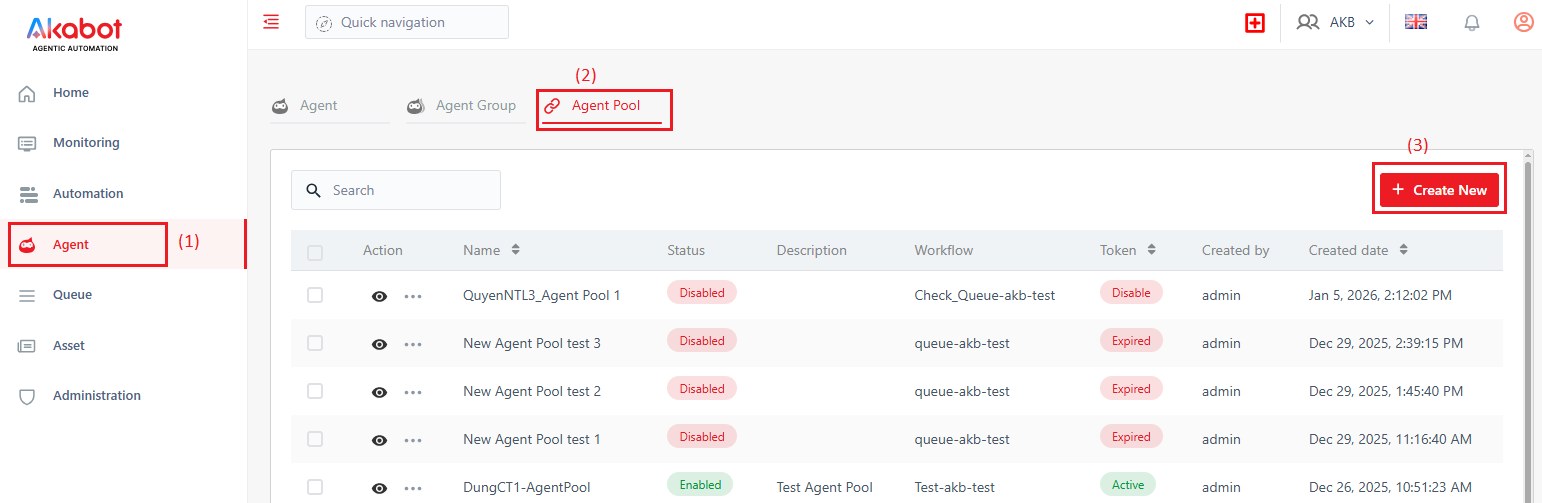
In the Create Agent Pool dialog:
- Enter a meaningful name for the Agent Pool.
- Select the workflow that the Agents will execute.
- In the Token dropdown list, select a managed token that will be used to invoke HTTP requests for pushing messages to the Agent Pool.
This step is optional if you plan to trigger the Agent Pool only via the Center’s Schedule feature. - Select one or more Agents that will be responsible for executing the workflow.
After creation, the new pool will appear in the Agent Pool list.
You can click on an Agent Pool to view its detailed configuration.
3. Trigger Agent Pool by using Schedule
You can trigger an Agent Pool automatically using akaBot Center’s scheduling feature.
Navigate to: Automation > Schedule > Create New
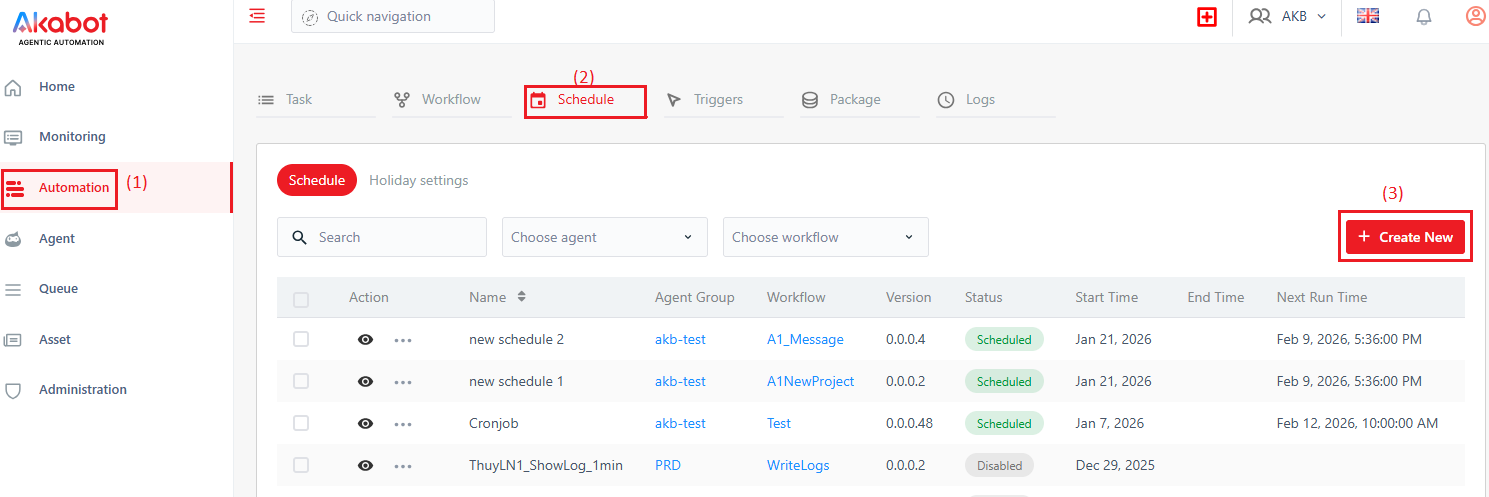
In the Create a new schedule dialog:
- Enter a meaningful name for the schedule.
- Select the target workflow. This workflow must be the same as the one configured in the Agent Pool.
- Configure the time recurrence to define how frequently the schedule will run.
Next, navigate to the Forward To tab:
- Select the Agent Pool that you want to trigger.
- Click Save to complete the configuration.
After the schedule is created, it will appear in the Schedule list.
Execution Behavior
When the schedule is triggered:
- A new queue item is created.
- One available Agent in the pool will pick up the queue item and start execution.
- While the task is running, the queue item status is InProgress.
- If no Agent is available, the queue item remains in New status until an Agent becomes available.
- After execution:
- The status becomes Successful if completed successfully.
- The status becomes Failed if a business exception occurs.
4. Trigger Agent Pool by using 3rd-party client
Alternatively, you can trigger an Agent Pool by using a third-party client to send an HTTP request. The client must support HTTP requests with Bearer Token authentication.
To send a request, you need:
- The Agent Pool Key
- A valid Managed Token
For example, you can use Postman to invoke the API.
Passing Input Data to the Workflow
If you want to pass input data to the workflow, include an escaped JSON string in the specificData property of the request body.
The workflow must:
- Define an input argument named inputData of type String.
- Use the Deserialize Json<T> activity to convert the input string into a JSON object for further processing.
Querying Request Status
The response from the server includes a property named requestId. This value can be used later to query the status of the request message.
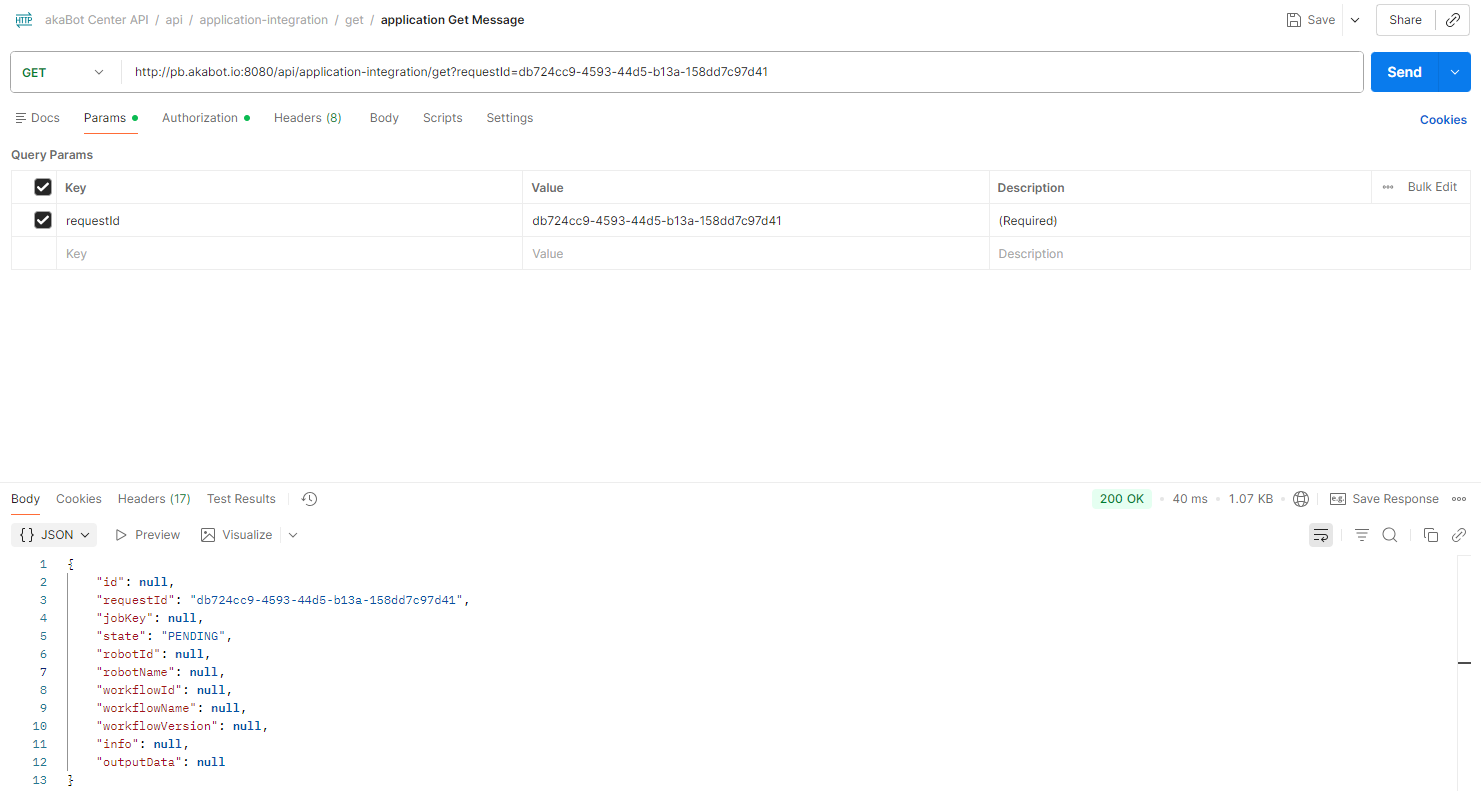
Was this article helpful?
That’s Great!
Thank you for your feedback
Sorry! We couldn't be helpful
Thank you for your feedback
Feedback sent
We appreciate your effort and will try to fix the article